Snip the source. Leave the trail in Excel.
Draw the fields once. Every matching document in the batch follows, and each cell still opens the page it came from.
Download the manifest
The stack of notices grows. The review still has to see the page.
Fund administration, audit, and controllership teams keep meeting the same file again: a capital call, a confirmation, a form. The fund name, the investor, and the amount sit in the same place every time. Someone still retypes them, and someone else still has to find that sentence in the PDF before they sign off.
Three things pile up together.
- More documents, one template. A call series or a confirmation batch shares a layout even when the names and amounts change.
- More columns to agree. The export has to land in the order the workpaper already uses.
- More to defend. A number in a cell is only useful if a reviewer can open the source and see the snip that produced it.
A capital call, read once and applied to the series
Take a capital call notice. On the first PDF you snip three regions: fund name, investor name, and total amount called. DataSniper names each snip, and each name becomes a column. Drag the snips into the order the sheet should use. Export writes one row for that notice and one row for every other notice you uploaded with it.
The boxes are page-relative. They read the same rectangle on page one of each file when the administrator’s template is stable. When a later notice inserts a line, DataSniper follows the label beside the first snip, marks that row, and the preview opens on the moved region. If a later notice wraps a long investor name past the box you drew, you open that cell, widen the snip on the preview, and the cell updates with the text now inside the box.
Seven synthetic notices in the sample set share that template. Notice 04 carries a trust name long enough to show the clip: a narrow snip stops at “The Johnathan Q. Abernathy Rev”, and a wider one returns the full “The Johnathan Q. Abernathy Revocable Living Trust dated March 14, 1998”. Notice 07 inserts one extra line so the fields move down.
Snip, apply, review
Snip
Open the batch in the Excel task pane. Drag a rectangle on the first document and give it the field name you want as a header.
Apply
The same rectangles run across every uploaded file that shares the layout. You reorder the snips before export so the columns match the workpaper.
Review
Click any exported cell. The source document opens with that snip highlighted. Drag or resize the box and the cell follows.
How we help
DataSniper keeps the extraction inside Excel. You bring the evidence in, you decide the fields, and the sheet keeps a path back to the page.
Snip the fields on the first document
Upload the PDFs, or PNG, JPEG, and WebP images, and read them in the task pane. Drag across the fund name, the investor, the amount called, or whatever regions this template uses. Name the snip. That name is the column.
Put the columns in workpaper order
Each snip is an output column, with a Source document column beside them. Drag the snips in the list until the headers sit in the order you want to export. The reorder happens before anything is written to the sheet.
Apply the template to the whole batch
Export reads every uploaded document with those page-relative boxes. PDFs use the text layer inside the rectangle, so a box that stops mid-name returns only the characters inside it. You get one row per document in a table named DataSniperExport, starting at A1 of the active sheet.
Trace the cell back to the page
With the task pane open, click a result. A preview shows that file and highlights the snip. If the investor name was cut off, widen the box on the preview. Extraction runs again and the Excel cell updates immediately. The edit applies to that document’s snip.
Add it to Excel
Before the snip, and after
Before
- Each notice is opened, and the fund, investor, and amount are typed into the next empty row.
- A long legal name is shortened by hand, and the shortened form is what the reviewer inherits.
- The question “where did this amount come from?” means searching a folder for the PDF and the paragraph.
After
- The fields are marked on the first notice. The rest of the same-layout batch fills in as rows.
- A clipped name is visible in the cell. Opening the cell shows the box, and widening it rewrites that cell.
- The reviewer starts from the sheet. The preview opens on the snip, on the document that row came from.
From the first box to a reviewable sheet
- Upload the batch. Choose the PDFs together, or drop them on the task pane. Images of a page can come in the same way. The files open inside Excel, and you move through them from the document list.
- Snip document one. Drag a box for each field. Name them Fund, Investor, and Amount called, or the names your procedure uses. A snip remembers its page and its rectangle.
- Order the columns. Drag the snip list until the headers match the sheet you want. Source document stays as its own column so every row names the file it came from.
- Export one row per document. DataSniper reads each box on each file and writes the table at A1. A later export replaces the previous DataSniperExport table, including cells already in that range.
- Open the source from the cell. Click a body cell while the task pane is open. The preview dialog shows that document with the snip highlighted.
- Correct the box live. Drag or resize the highlight. The text inside the new rectangle replaces the cell. Other documents keep the boxes they already have until you edit those too.
What the snip reads
On a PDF with a text layer, DataSniper keeps the characters whose positions fall inside the box. The engine is PDF.js, loaded with the add-in and run on your machine. A narrow box truncates. It does not pull the rest of the line in from outside the rectangle.
Scanned pages and image uploads have no text layer. DataSniper then runs Tesseract.js in the browser on the cropped region. The first OCR pass downloads the library and the English traineddata from jsDelivr. The crop is recognized locally. If that download is blocked, the cell is left blank and the status line says why.
The rectangles only line up when the documents share a layout. A notice that moves the investor name will return whatever now sits in that box. Draw the snip on the template you actually received.
Teams who live in the same template
DataSniper is built for a batch that repeats. The examples below are the same action: mark the fields once, export a row per file, and review from the cell.
Fund administration
Work through a capital call series without retyping the notice.
- Snip fund name, investor name, and total amount called
- Keep a long investor name whole by widening the box
- Export one row per notice
- Open any amount and see the page it was read from
External audit
Turn a stack of same-layout confirmations or notices into a sample sheet you can review.
- Snip the fields the procedure tests
- Order the columns to match the workpaper
- Leave a source-document column on every row
- Click a cell during review and land on the snip
Financial control
Pull a recurring statement or notice into the close file when each copy shares the layout.
- Read the figures from the page, inside Excel
- Keep the export beside the rest of the workbook
- Correct a clipped line without retyping it
- Hand the sheet to review with the preview still available
Tax
Extract the same boxes from a stack of one form.
- Snip the lines the form keeps in a fixed place
- Apply those boxes to every copy in the batch
- Export a row per form
- Open the form from the cell when a value needs a second look
Advisory
Build the data table for a client pack that repeats the same schedule.
- Mark the fields the report needs
- Drag them into the column order of the deliverable
- Fill a row for each document in the pack
- Trace a figure back to the page while you write
Internal review
Give a reviewer the cell and the evidence together.
- Start from the exported table
- Open the document in a preview from the cell
- See the snip highlighted on the page
- Widen a box during review and watch the cell update
The documents stay on the computer that opened them
DataSniper is a task pane add-in. There is no DataSniper account and no DataSniper server that receives your files. Upload stores the bytes in IndexedDB for this site, inside the Excel webview on desktop or inside the browser for Excel on the web. The sheet stores the extracted text and a pointer back to that local file. Clearing site data removes the files. The cell text remains, and the preview can open a file only while that local copy is still there.
Desktop Excel and Excel on the web keep separate stores. A batch uploaded in one does not appear in the other. The add-in itself loads over HTTPS from this site, and Office.js loads from Microsoft. That traffic is the add-in. OCR, only when a page has no text layer, also fetches Tesseract.js and English traineddata from jsDelivr. The cropped image is not uploaded.
The browser harness is a stand-in workbook for trying the flow and for automated tests. It shows the table in the page. It does not write an .xlsx file.
Frequently asked questions
Which files can I snip?
PDFs are the primary format. PNG, JPEG, and WebP images of a page can be uploaded and viewed as well. A PDF with real text is read from its text layer. A scan or an image uses the OCR fallback described above.
Do I snip every document?
You snip the first one. Those rectangles become the template for the rest of the batch. When a later notice inserts a line and a field moves, DataSniper follows the label beside the first snip, such as Investor or Amount called, and marks that row so you can check the shift. You can still adjust one document’s box from its preview, or apply that box to every document.
What lands in Excel?
A table named DataSniperExport at cell A1 of the active sheet. The header row is Source document plus your snip names, in list order. Each uploaded document is one body row. An amount that is clearly currency, with a symbol, a thousands comma, parentheses, or a K, M, or B suffix, is stored as a number. The text from the page stays with the cell. The workbook also keeps the template and each value’s document, page, and region, so preview and a later export still work after you reopen the file. Export replaces an earlier DataSniperExport table and overwrites that range, including source links from the previous grid.
How does the preview open?
Click a result cell while the DataSniper task pane is open. Excel opens a dialog on that document with the region that produced the cell, including a label match that moved the box. After you move the box, Apply this box to all documents copies that rectangle onto the template and reads every loaded row again. A nudge that lands on a different field does not replace the label match. If the file is no longer stored in this browser, DataSniper asks you to choose that same filename. A workbook that already has DataSniper links opens the task pane again the next time that file opens.
Where do Excel for Mac, Windows, and the web get the add-in?
DataSniper runs in Excel on Mac, Windows, and the web. DataSnipper’s desktop add-in runs in Excel on Windows, and DataSnipper also offers a separate Excel Online add-in. You sideload manifest.xml. The steps for the Mac wef folder, a Windows shared-folder catalog or Upload My Add-in, and Upload My Add-in on Excel for the web are below. DataSniper is distributed as this manifest. It is not an AppSource listing, and this page does not deploy it from an admin center.
Does any of the document leave my machine?
The file bytes stay in local storage for this site. They are not posted to a DataSniper backend. The add-in pages and, on a scanned page, the OCR language data are downloaded. The recognition itself runs in the browser.
Add DataSniper to Excel
Sideload the manifest yourself. The task pane then loads from https://sheetspeed.agi-jarvis.com/datasniper/. Quit Excel completely before you copy a manifest into a folder. After it is installed, the Home tab shows a DataSniper button. If the group is missing, look under Insert, Add-ins, My Add-ins.
Network blocks sheetspeed.agi-jarvis.com? Use this alternate manifest and its starter workbook.
Excel on Mac
These steps follow Microsoft’s sideload path for Microsoft 365 Excel on Mac. Quit Excel from the Excel menu before copying the file.
- Download manifest.xml.
- In Finder, choose Go, Go to Folder, and open
~/Library/Containers/com.microsoft.Excel/Data/Documents/wef.
- If
wef is missing, create it. The parent Documents folder is there after Excel has been opened at least once.
- Copy
manifest.xml into wef. The file name can stay manifest.xml.
- Open Excel and use the DataSniper button on the Home tab.
- Download the starter workbook and open it. The pane is saved visible in that file, and Excel for Mac keeps it visible on later saves.
Recent Microsoft 365 builds also show Upload My Add-in under Insert, Add-ins, My Add-ins. When that command is present, select the manifest from there. When it is absent, use the wef folder. Microsoft’s folder method is documented in Sideload an Office add-in on Mac.
Excel on Windows
Use the command your Excel shows.
Upload My Add-in
- Download manifest.xml.
- In Excel, choose Insert, Add-ins, My Add-ins.
- Choose Upload My Add-in and select the manifest.
An organization can hide Upload My Add-in. When you do not see it, use a shared-folder catalog.
Shared-folder catalog
- Create a folder, for example
C:\DataSniper, and put manifest.xml in it.
- Share the folder with yourself. Excel wants a UNC path. A share named DataSniper is typically
\\localhost\DataSniper.
- In Excel, choose File, Options, Trust Center, Trust Center Settings, Trusted Add-in Catalogs.
- Enter the UNC path as the catalog URL, check Show in Menu, and choose OK.
- Restart Excel. Choose Insert, My Add-ins, Shared Folder, then DataSniper.
Microsoft’s steps are in Create a network shared folder catalog.
Excel on the web
- Open a workbook in Excel on the web.
- Choose Insert, Add-ins, More Add-ins, then My Add-ins.
- Choose Upload My Add-in and select manifest.xml.
- The DataSniper task pane opens. The Home tab also has a DataSniper button.
Upload My Add-in on the web applies to your own account. It is a personal sideload, not an organization-wide deployment. If the command is missing, an admin has turned sideloading off. The manifest’s pages have to stay reachable at https://sheetspeed.agi-jarvis.com/datasniper/.
Download manifest.xml
Practice on seven capital call notices
The notices share one template and differ in fund, investor, and amount called. They are synthetic. They are not demands for payment. Snip the three fields on notice 01, export, and then open notice 04’s investor cell if you want to see a narrow box truncate a long name. Notice 07 is the same call with one extra line, so a label match has to follow the fields.
| File | Fund | Investor | Amount called |
|---|
| capital-call-01.pdf |
Northwind Growth Fund III, L.P. |
Harborview Pension Trust |
$1,250,000.00 |
| capital-call-02.pdf |
Northwind Growth Fund III, L.P. |
Cedar & Pine Family Office LLC |
$875,400.50 |
| capital-call-03.pdf |
Blackpine Opportunistic Credit Fund II |
Meridian University Endowment |
$2,100,000.00 |
| capital-call-04.pdf |
Blackpine Opportunistic Credit Fund II |
The Johnathan Q. Abernathy Revocable Living Trust dated March 14, 1998 |
$640,250.75 |
| capital-call-05.pdf |
Sable Ridge Venture Partners IV, L.P. |
Oak Street Capital Advisors |
$3,450,000.00 |
| capital-call-06.pdf |
Sable Ridge Venture Partners IV, L.P. |
Alexandra Catherine Pemberton Worthington III |
$424,242.42 |
| capital-call-07.pdf |
Northwind Growth Fund III, L.P. |
Northline Municipal Pension Plan |
$424,242.00 |
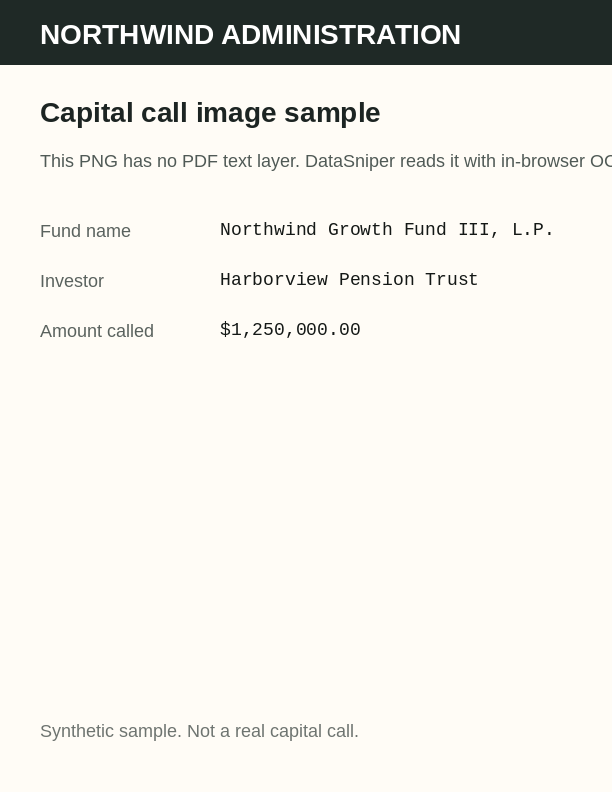
An image-only twin of the first notice is at capital-call-image.png. Coordinates measured from the text layer are in layout.json. You can also load notices 01–07 from the Load sample notices button inside the task pane.
Open the browser harness if you want to walk the snip, reorder, export, and preview flow before sideloading.
 DataSniper